

Appearance
Audit Log
The Audit Log provides a chronological record of all critical actions performed within a specific application context. It is a vital feature for tracking changes, debugging permission issues, and ensuring accountability within the CARRO SSO ecosystem.
Where to Find It
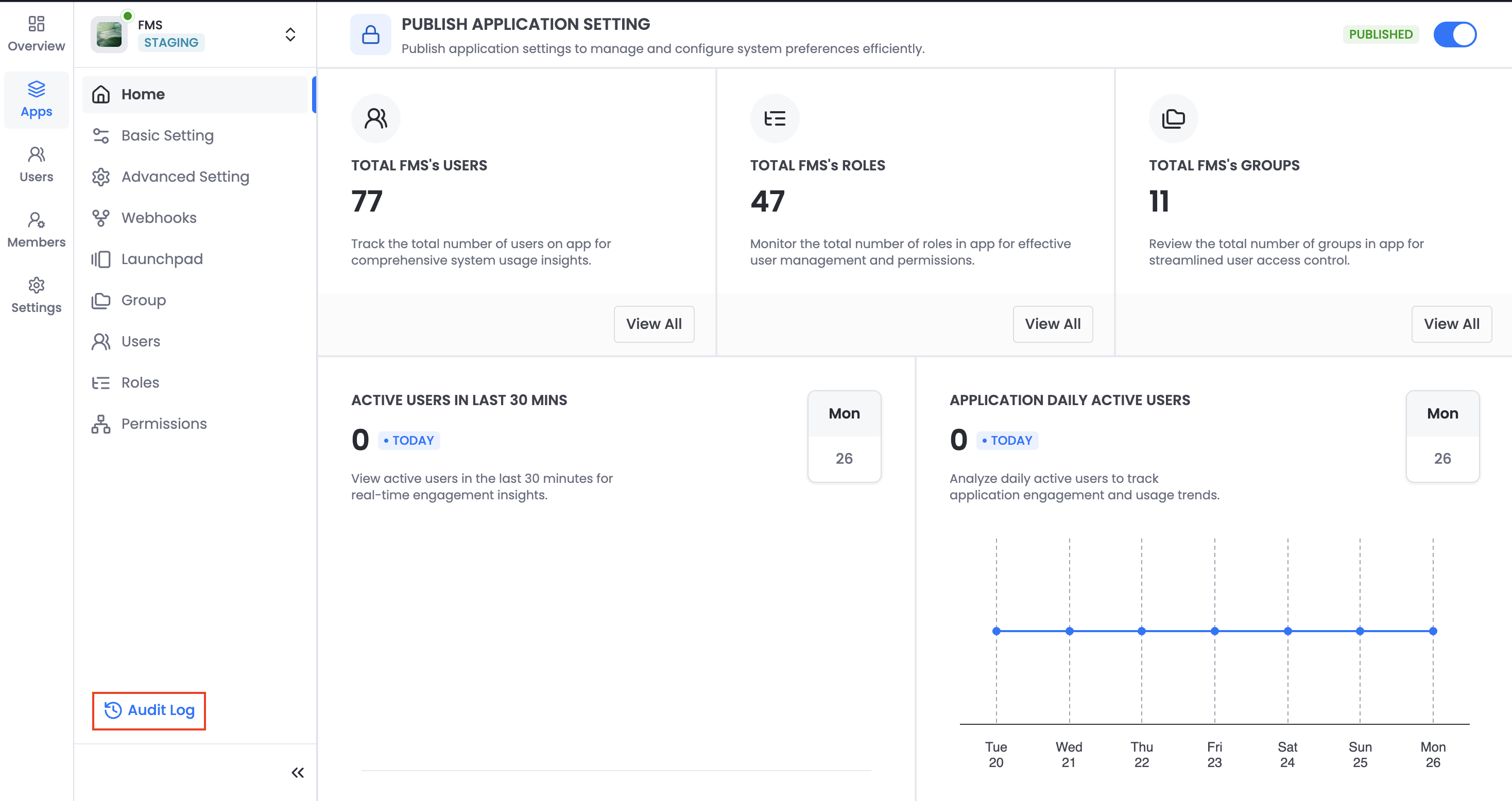
- Navigate to an application's App Detail screen (e.g., FMS).
- At the bottom of the left navigation panel, click Audit Log.
- A right-side drawer will slide out, displaying recent actions in a timeline format.
What It Logs
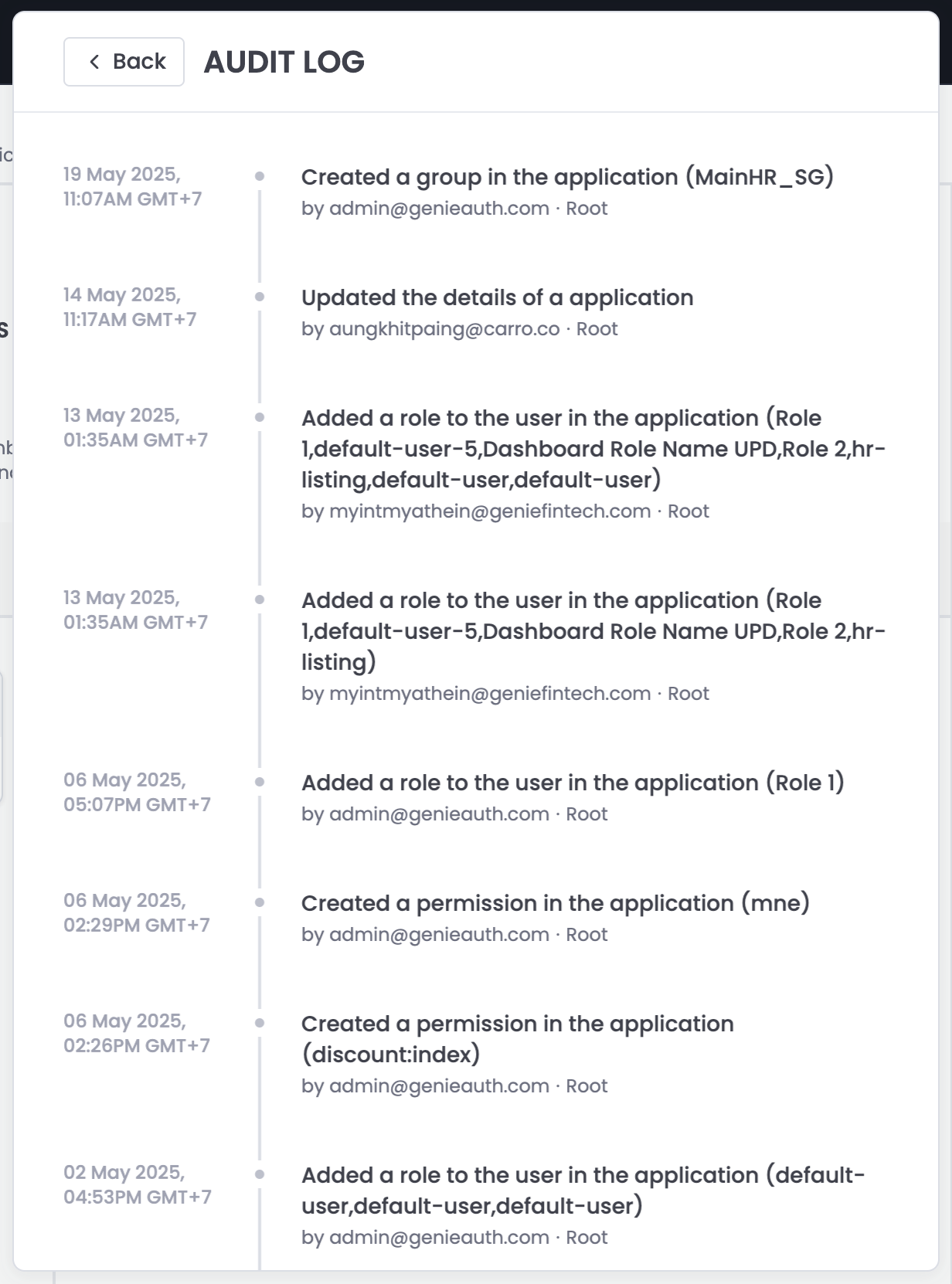
Each log entry includes:
| Field | Description |
|---|---|
| Timestamp | Date and time the action occurred (with GMT+7 timezone). |
| Action Summary | A brief description of the change (e.g., created a group, added a role). |
| Performed by | Email of the user who made the change. |
| Role | Indicates if the action was performed as a Root or other privileged role. |
Examples
Here are common logged actions:
✅ Group Management
- Created a group:
MainHR_SG
- Created a group:
✅ Role Assignments
- Added a role to users (e.g.,
Role 1,Dashboard Role Name UPD,default-user)
- Added a role to users (e.g.,
✅ Application Updates
- Updated application metadata or details
✅ Permission Changes
- Created permissions (e.g.,
mne,discountindex)
- Created permissions (e.g.,
Use Cases
- Security Auditing: Trace when and by whom roles or permissions were modified.
- Debugging Access Issues: Identify if a user's access changed recently.
- Compliance Reporting: Provide a history of permission assignments or configuration changes.
Access Control
- Only users with appropriate permissions (typically Admin or Root) can view the Audit Log.
- Logs are read-only and cannot be modified or deleted.
Log Retention
- Audit entries are stored indefinitely for compliance and investigation.
- Future versions may include export or filter capabilities.